
Setting Automatic / Out-of-Office replies on your shared mailbox takes a couple more steps than setting it on your own mailbox, but is still quite easy to do yourself.
To set up automatic replies, follow these steps:
1. Go to https://outlook.office.com/mail/inbox and sign in with your Youth Projects account.
2. Click on your profile photo in the top right corner, and click on 'Open another mailbox'. Enter the email address of the mailbox you want to open.
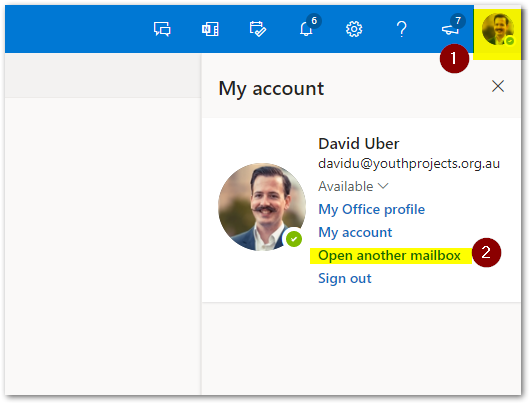
If you have the right permission, the mailbox should then open in a new tab.
4. Click on the settings icon in the top-right corner, then search for 'Automatic Replies' and click on the option that appears.
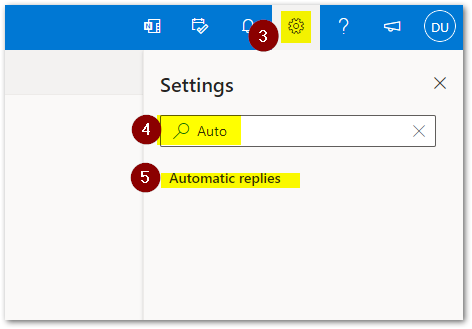
5. Set up your Out-of-Office reply!
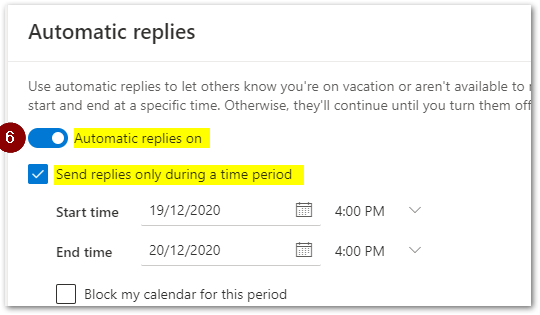
6. You are done, contact IT for any questions or assistance with this process.
For any questions about this article, please contact the IT Support Team.
Comments
0 comments
Article is closed for comments.